

Table Of Contents
- Adding HTML Elements via Custom HTML Tags
- Injecting Third-Party Marketing Scripts
- Creating Event Listeners
- FAQ: Using Custom HTML Tags in Google Tag Manager
- Conclusion
Google Tag Manager (GTM) provides a flexible environment for managing scripts and tracking codes on a website.
One of its key features, the Custom HTML Tags in GTM, allows users to inject HTML elements, JavaScript code, and third-party scripts into their web pages.
While this feature offers significant flexibility, it also comes with certain limitations and potential risks.
Before integrating Custom HTML Tags into your GTM setup, it is crucial to understand best practices, common pitfalls, and alternative approaches that might provide a more secure and efficient solution.
In some cases, using a Custom HTML Tags in GTM is unavoidable, but in others, it may not be the optimal approach. This article explores these scenarios in detail.
1. Creating Event Listeners
One of the most widely used implementations of Custom HTML Tags in GTM is event listener tasks.
By listening to an event and transforming its associated data, you can send structured data to the dataLayer, allowing other tags to utilize this data efficiently.
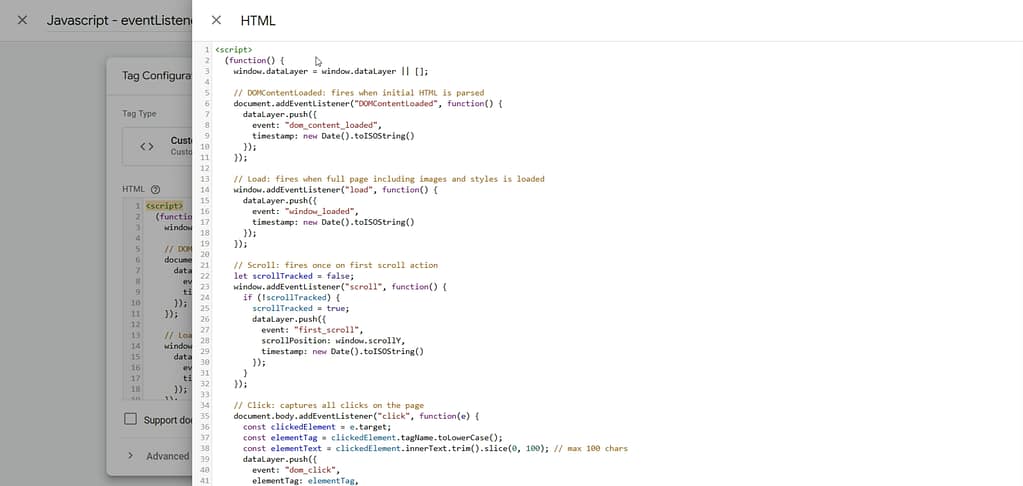
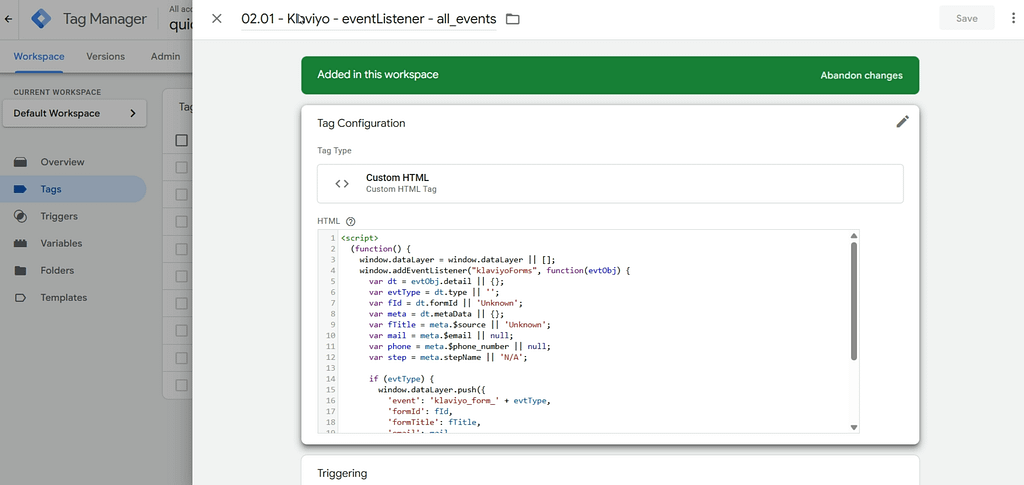
The events you choose to listen to may include:
- Default JavaScript events (e.g., click, scroll, DOMContentLoaded, load).
- Vendor-specific events integrated into your website (e.g., formSubmission from Klaviyo or UserConsentSelected from Consent Management Platforms).
3.1 Predefined Event Listeners in GTM
GTM natively supports some commonly used JavaScript event listeners, such as:
- Click
- Scroll
- DOMContentLoaded
- Load
These built-in event listeners can be mapped to GTM Triggers, making it easier to track user interactions without requiring manual script implementations.
By understanding how event listeners work within GTM, you can create a more robust, scalable, and data-driven tracking strategy.
3.2 Custom Event Listeners in GTM
While GTM provides built-in trigger types for commonly used events, there may be cases where you need to define custom event listeners manually.
However, one critical consideration is that GTM containers can be blocked by certain browsers and ad blockers.
This can lead to legal and technical complications, particularly for events that process user consent data.
Using JavaScript’s addEventListener function, you can capture event data and push it to the dataLayer for use in other GTM tags. Some examples include:
document.addEventListener('formSubmit', function(event) {

  window.dataLayer.push({

    'event': 'formSubmission',

    'formId': event.target.id

  });

});
This method allows event-driven data collection without direct dependencies on GTM’s native triggers.
2. Adding HTML Elements via Custom HTML Tags in GTM
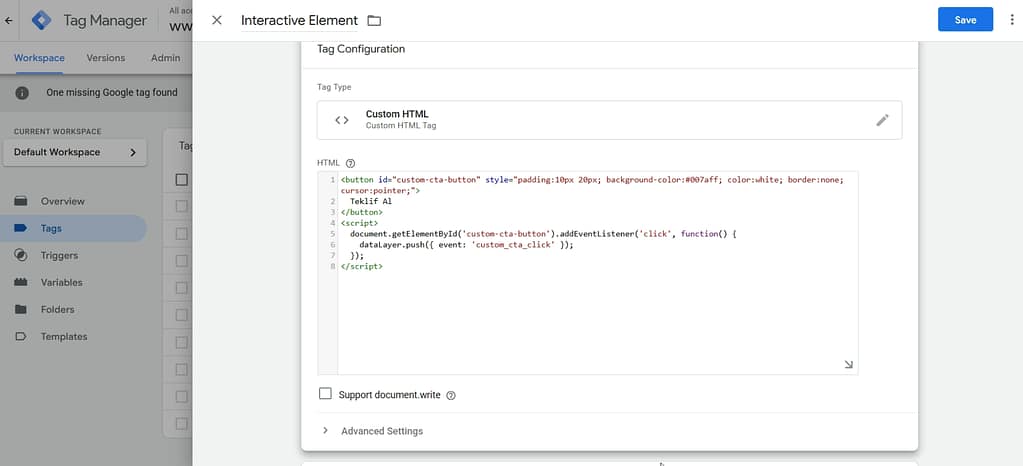
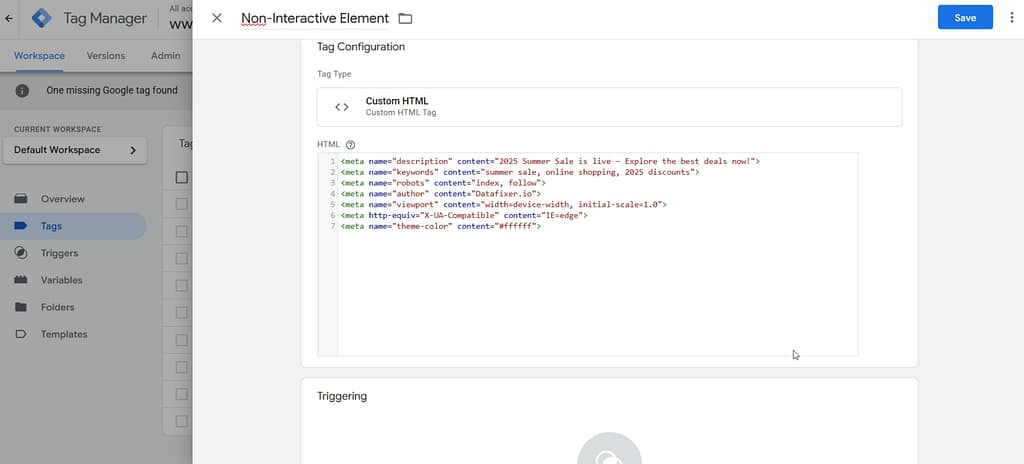
Custom HTML Tags in GTM can be used to insert both interactive and non-interactive HTML elements into a webpage. These elements may include:
- Interactive elements: Buttons, forms, modals, banners, pop-ups, or other UI components users can engage with.
- Non-interactive elements: Meta tags, structured data, or hidden elements that serve a technical purpose without directly affecting user interaction.
While it is theoretically possible to inject such elements through GTM’s Custom HTML Tag, best practices discourage this approach due to several challenges:
- Placement Limitations:
- HTML elements injected via Custom HTML Tags in GTM are appended to the end of the <body> by default, making precise placement difficult.
- Repositioning them with JavaScript can cause performance issues and conflicts.
- Blocking Risks:
- Ad blockers and browser restrictions can prevent the display of injected elements, causing broken functionality.
- Content Security Policies (CSPs) may also restrict inline scripts, limiting the effectiveness of GTM for such tasks.
- Timing Issues for Non-Interactive Elements:
- Meta tags and other non-interactive elements injected via GTM may load too late for search engines and social media crawlers to interpret them correctly.
- As GTM loads asynchronously, this method is unreliable for critical SEO elements.
Recommendation: For essential interactive and non-interactive elements, it’s best to integrate them directly into the site’s codebase rather than relying on GTM. This approach ensures better performance, security, and compatibility.
3. Injecting Third-Party Marketing Scripts
Common Use Cases
One of the most frequent and legitimate use cases for GTM’s Custom HTML Tags is injecting third-party marketing scripts that are not natively supported within Google Tag Manager’s built-in or community tag templates.
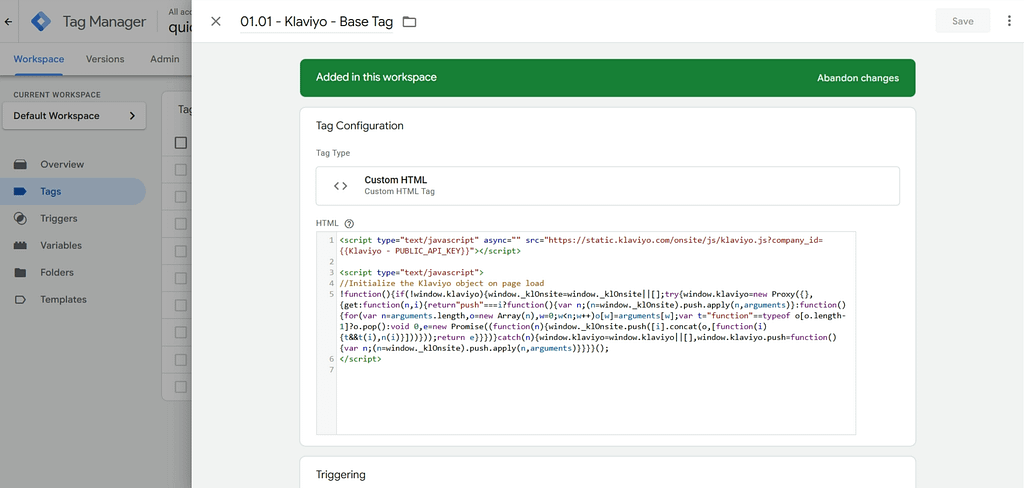
Google officially states that Custom HTML Tags in GTM should be used to integrate scripts from vendors that are not included in GTM’s Template Gallery. However, even for third-party scripts, there are better alternatives in many cases.
Best Practices for Adding Third-Party Scripts
Instead of injecting scripts directly through a Custom HTML Tag, Google recommends using Custom Tag Templates whenever possible. These templates offer:
- Improved security: Custom Tag Templates run within GTM’s sandboxed environment, reducing the risk of malicious code execution.
- Better performance: Pre-defined templates often optimize how scripts are loaded and executed, improving site speed and reducing rendering delays.
- Easier maintenance: If multiple Custom HTML Tags in GTM are used for different scripts, debugging and managing them becomes difficult over time. Custom Tag Templates help keep implementations organized.
If you are already using Custom HTML Tags in GTM for third-party scripts, consider migrating them to Custom Tag Templates.
Google provides official documentation on how to create Custom Tag Templates, though beginners may find this process challenging.
FAQ: Using Custom HTML Tags in Google Tag Manager
Here are the most frequently asked questions about using custom HTML tags in GTM:
1. What is a Custom HTML Tag in GTM?
A Custom HTML Tag in GTM is a flexible tag type that allows you to add custom JavaScript or HTML directly to your website through Google Tag Manager. This includes scripts for marketing, analytics, tracking pixels, or any other custom logic that cannot be implemented via GTM’s built-in tags. These tags execute once triggered, making them powerful but also potentially risky tools for modifying or enhancing site behavior.
2. When should I avoid using Custom HTML Tags in GTM?
Avoid using Custom HTML Tags in GTM when you need to inject critical SEO elements (like meta tags or structured data) or interactive components that require precise placement on the page (such as modals or banners). Because GTM loads asynchronously and appends tags at the end of the <body>, the timing and positioning of these elements can be unreliable. For anything that must load early or appear in a specific DOM location, server-side implementation or hardcoded solutions are safer.
3. Can I use Custom HTML Tags in GTM for third-party scripts?
Yes, but only when there is no available tag template in GTM’s Community Template Gallery. While it may seem convenient to drop a script into a Custom HTML Tag, this approach bypasses GTM’s sandboxed execution and exposes your site to risks like code conflicts or malicious injections. If a vendor offers an official or community-built tag template, always prefer that over Custom HTML to ensure security, performance, and better maintainability.
4. Are Custom HTML Tags in GTM blocked by browsers or ad blockers?
Yes, in many cases. Because Custom HTML Tags often include tracking scripts or dynamic content, they can be flagged and blocked by privacy-focused browsers or ad-blocking extensions. This leads to broken functionality or missing data in your analytics. Some security configurations, such as Content Security Policies (CSPs), can also prevent Custom HTML Tags from executing properly. Always test across browsers and devices, and consider alternative tag types if consistency is critical.
5. Is it safe to use Custom HTML Tags in GTM?
Using Custom HTML Tags in GTM is safe when done correctly, but they do introduce risks. These tags execute raw code without restriction, meaning a single error can cause site performance issues or expose security vulnerabilities. You should avoid using them for code you don’t fully understand or control. Implement strict tag firing rules, enable tag sequencing, and monitor regularly to reduce potential risks.
6. What’s the alternative to Custom HTML Tags in GTM?
The most recommended alternative is using Custom Tag Templates within GTM. These are pre-built, sandboxed templates that handle script injection securely. Google and the GTM community offer a wide selection of templates for marketing, analytics, and utility purposes. If you need something specific, you can even build your own Custom Tag Template, which lets you define logic and permissions in a structured and safer way than injecting arbitrary code through Custom HTML.
7. How can I track custom events with Custom HTML Tags in GTM?
Custom HTML Tags in GTM can be used to listen for and capture JavaScript events on your site. For example, you can use addEventListener to detect when a user submits a form, clicks a button, or scrolls past a certain point. You can then push relevant data to the dataLayer to trigger other tags or send data to analytics tools. This is especially useful for capturing non-standard user interactions that aren’t covered by GTM’s built-in triggers.
Example:
document.addEventListener('formSubmit', function(event) {
window.dataLayer.push({
event: 'formSubmission',
formId: event.target.id
});
});
This lets GTM recognize and act on specific frontend behaviors, but keep in mind that such listeners may fail to execute if the GTM container is blocked or loads late.
8. Can Custom HTML Tags in GTM affect SEO?
Yes, Custom HTML Tags in GTM can negatively affect SEO if used to inject content that search engines rely on during initial page load, such as structured data or meta tags. Since GTM loads asynchronously, these elements may not be present in the initial HTML rendered by crawlers, causing them to be ignored. If you need to add SEO-critical elements, it’s best to include them server-side or in the main source code of the site, not via GTM.
Conclusion
Custom HTML Tags in GTM provide a powerful but potentially risky way to enhance website functionality.
They’re best reserved for specific use cases like event tracking or unsupported third-party scripts.
When possible, opt for built-in tags or Custom Templates to ensure performance, security, and long-term maintainability.
Read More
- How to Set Up The Google Tag in Google Tag Manager
- Custom HTML Tag in GTM: Klaviyo Event Listeners
- Does My Website Need Google Consent Mode For Tracking?
- Best Analytics Tools in 2025: Compared and Ranked

Leave a Reply